
Git - Uploading code
In the previous lessons, you wrote your first Java code, learned some debugging, and completed an exercise. Now it’s time to take your changes and push them to GitHub.
Git is a version control system that allows users to keep track of changes made to their code using commands. This learning course will use two commands: commit and push.
Even though there are different ways to use Git, such as command line, and GitHub Desktop, this stage will use the built in Git tools that VS Code has.
Commit
Section titled “Commit”A commit is a saved state of your repository. Each time you complete a task, such as completing an exercise, you should make a commit. Commits require a description to be written, this description is called a message. When writing a commit message, the message should be descriptive and not too long. For example, if you finished the Print.java exercise, then the commit message can be “Completed Print.java”
Push and Pull
Section titled “Push and Pull”Push takes the commits from your computer and puts them to the remote repository, the repository on your GitHub account. When uploading to GitHub, you have to commit your changes, then push.
Pull takes changes that are in the remote repository and bring them to your local repository, the repository on your computer.
VS Code’s integration of git uses the term “Sync Changes” rather than push because it pushes changes and pulls in new changes.
Uploading code
Section titled “Uploading code”Once you finish an exercise, save your code, then go to the Source Control option on the left of VS Code.
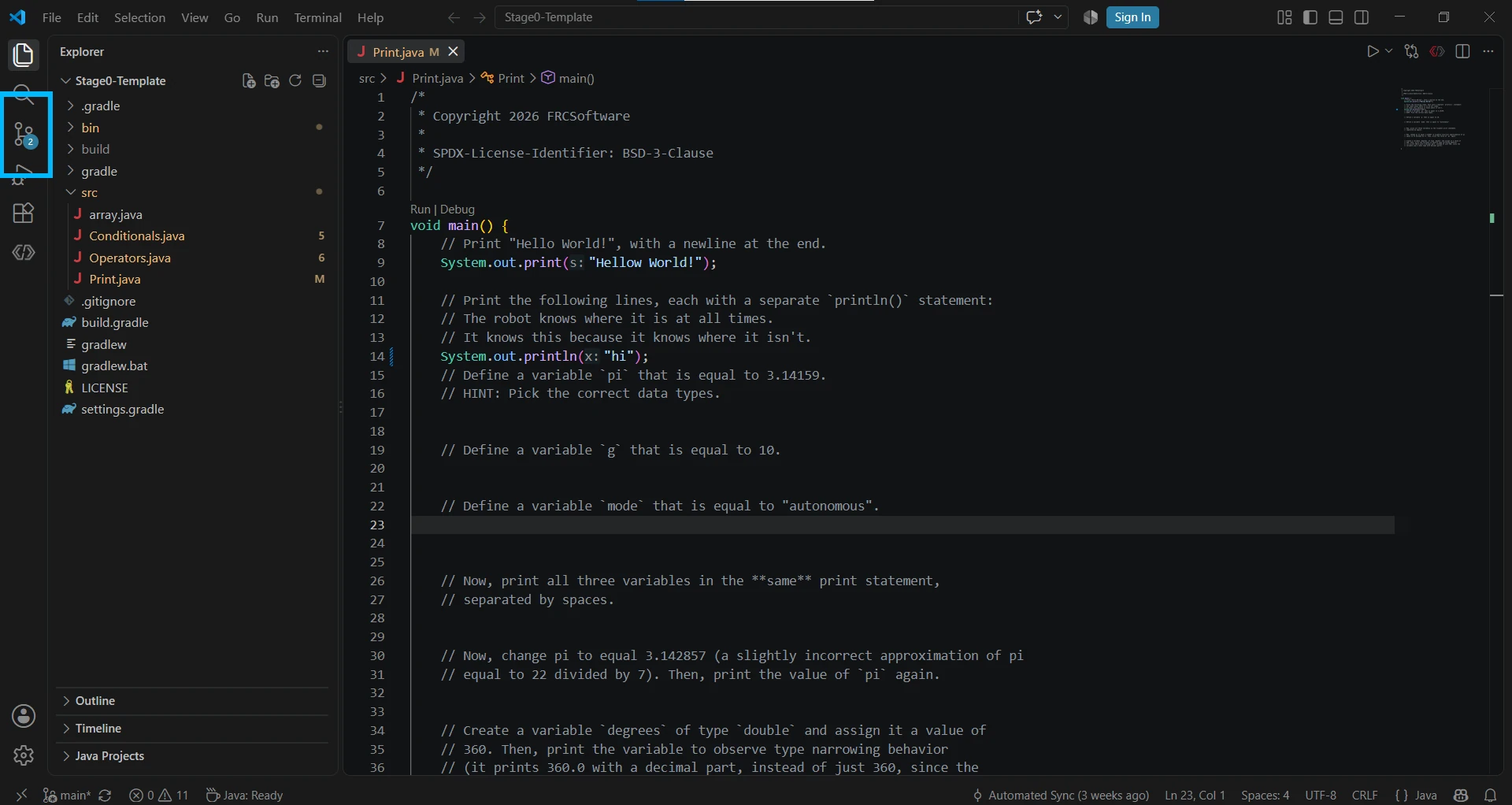
From there, a new sidebar will appear. Here you can see what files you changed and how they were changed. This is also where the changes can be committed and pushed to GitHub.
For this stage, when you complete an exercise, it’s recommended to commit and push your changes to your repo as shown.
For other stages in the learning course, it’s recommended to push code after completing a tasks or when you get to a stopping point. This helps makes sure that you don’t lose any progress.